"I bought Scrivener, opened it, looked at it, and went back to Word."
LIVE CLASS · SCRIVENER 3 FOR WINDOWS
The twelve Scrivener controls that run an entire book, taught slowly, on a Windows PC.
Scrivener for Windows
in One Sitting:
The 10% That Runs
100% of Your Book
A live 90-minute class taught entirely on a Windows screen. Twelve controls, in the order you need them, with permission to ignore everything else. Walk away with your book inside Scrivener, backed up, visible, and ready to write tomorrow morning.
Thursday, October 29 · 4 p.m. Eastern3 p.m. Central · 1 p.m. Pacific
Save My Seat for $47  With Joseph Michael90 minutes + Q&A · Permanent replay · Three bonuses
YOUR BOOK TODAY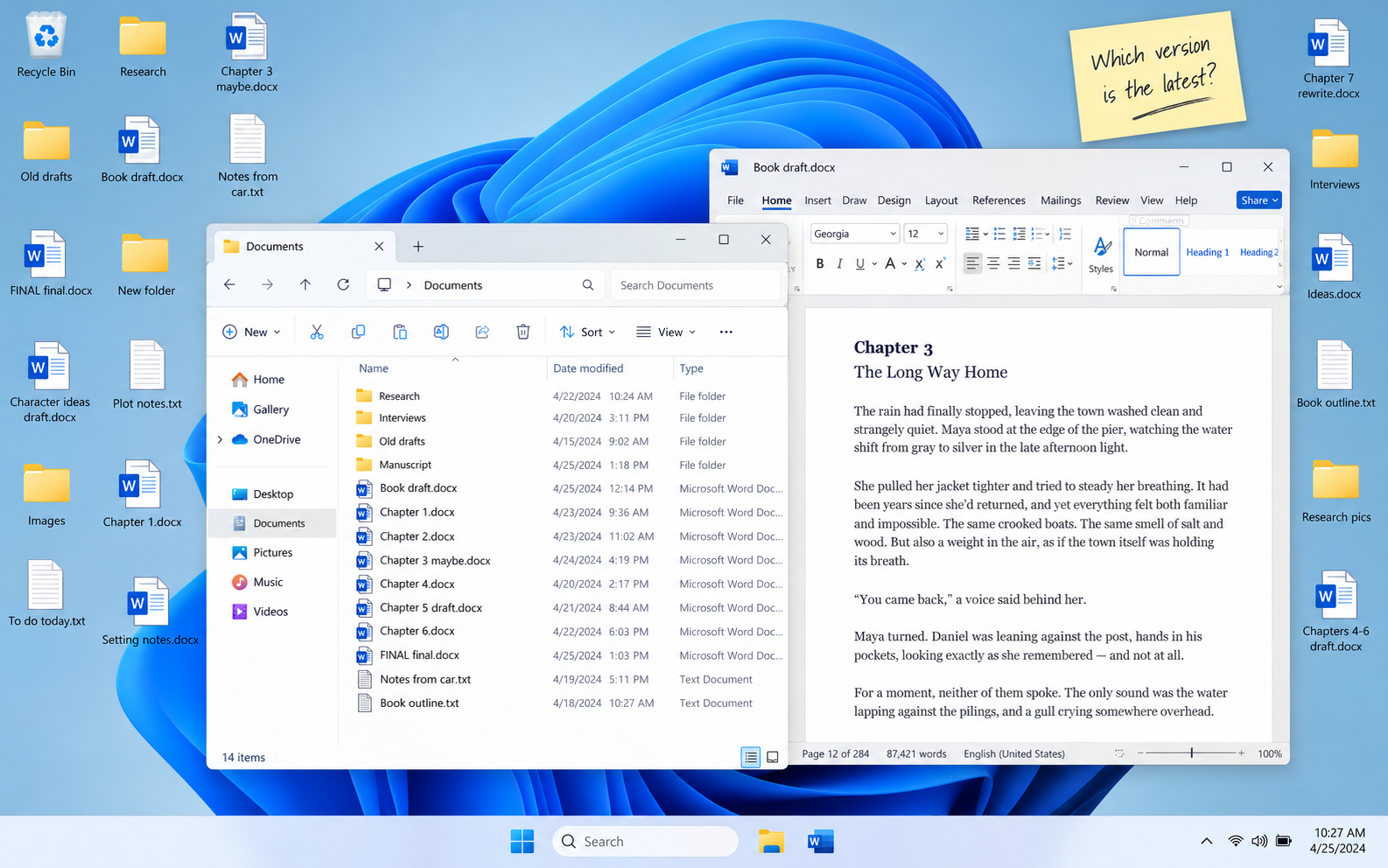 “Which file is the latest?”
“Which file is the latest?”YOUR BOOK, UNDER CONTROL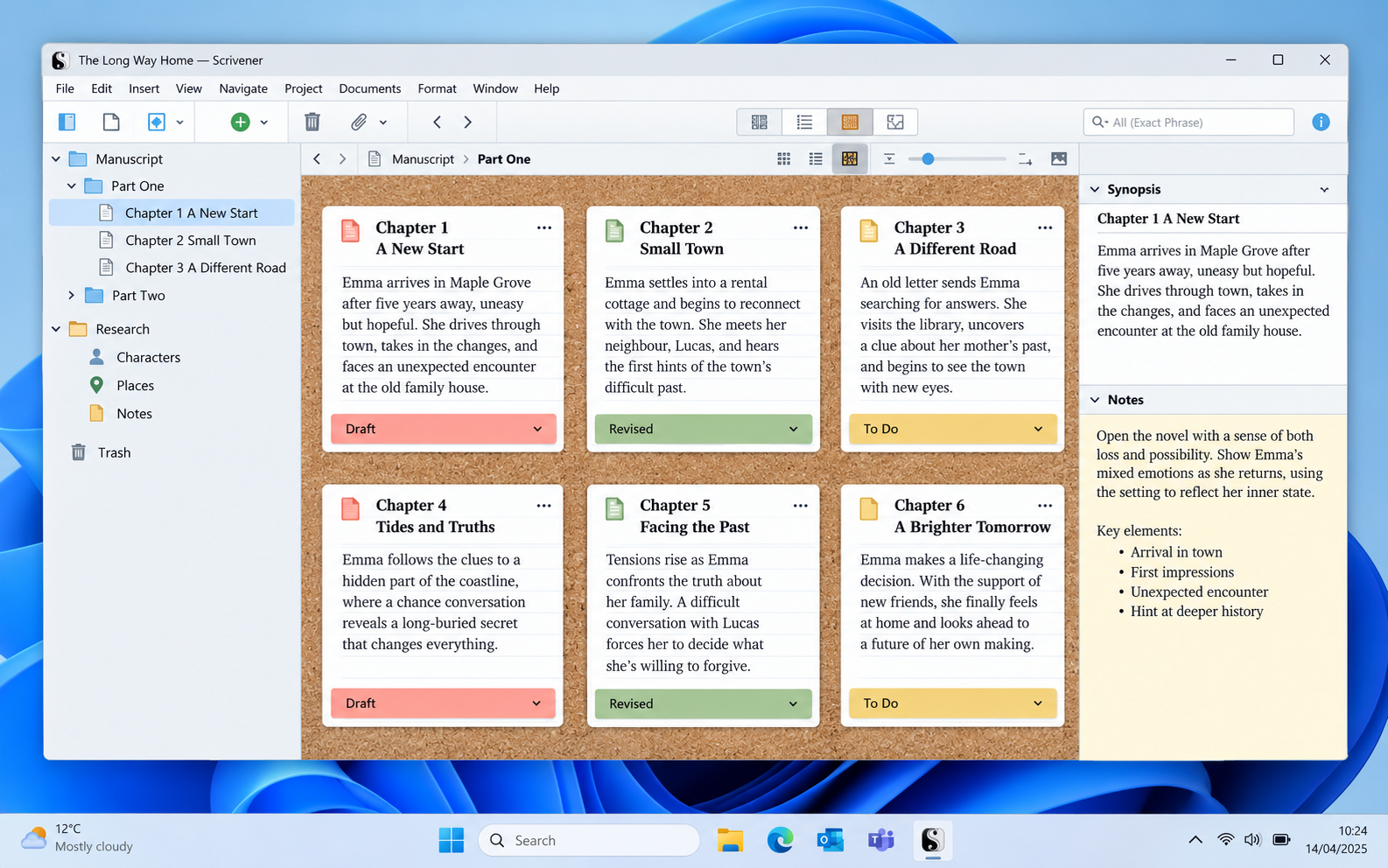
✓ Backed up. Organized. Ready to write.
Same words. Same Windows PC. A completely different feeling.
Get organizedA clear structure for your book.
Write with confidenceYour work is safe and easy to navigate.
See the big pictureFrom single scene to finished draft.
A NOTE FROM JOSEPH
A different screen.
A more personal promise.
A PERSONAL NOTE · OCTOBER 2026
This time, you get
the front row.
If you have ever watched one of my Scrivener trainings and thought, "That's great, Joseph, but where is that on MY computer?"
This one is for you.
Here is the truth. I work on a Mac. Most of my videos and nearly every live class I have ever taught were on a Mac. And more than half of the writers I work with are on Windows.
So for years, a lot of you have been doing extra work. Watching me click something, then hunting through your own menus to find where Windows put it. Hearing me say "Preferences" when your screen says "Options." Reaching for Command when you needed Control. One of you put it perfectly in a survey: it felt like reading the manual at the back of the class.
For this class I set up a Windows machine, and I am teaching every single step on it. No Mac screen at any point. Your Scrivener, your menus, your shortcuts, for the whole 90 minutes.
And I am going to use that time to fix the real problem. Which, I promise you, is not that you are bad at software.
Cheering for you,JosephYour Scrivener Coach
SOUND FAMILIAR?
It isn’t a learning curve.
It’s a loop.
I have read more than two thousand surveys from writers who bought my Scrivener training. The same story shows up over and over, in almost the same words:
Different writers. A familiar feeling.Real survey responses. Their original words.
ONE WRITER. FOUR FAMILIAR MOMENTS.
And around we go.
01
Buy Scrivener
“This is going to help.”
02
Open it
“Okay… where do I start?”
03
Feel lost
“Why is this so hard?”
04
Back to Word
“I’ll learn it another day.”
And the next time you try…the same loop starts again.
And somewhere in there,
a small voice starts saying…
“This is on you.”
LET ME STOP YOU RIGHT THERE.
It is not on you.
Nobody ever told you which ten percent of Scrivener to learn. So you tried to learn all of it, and all of it is too much for anyone.
I have been teaching this software for over a decade and I do not use most of it either.
THE WAY OUT
You don’t have to learn everything.
You need to know what matters.
Hundreds of featuresTwelve controlsYour next page
You do not have a Scrivener problem. You have a “which ten percent” problem.
And that one has a 90-minute fix.
YOU ARE IN THE RIGHT PLACE
A real writer.
A very real mess.
You will recognize yourself in at least one of these:
01 / THE ENDLESS SCROLL
“My book is in one enormous Word document.”
Three hundred pages. One file. Finding chapter twelve means scrolling for a minute and hoping you recognize it when you get there.
File Home Insert Layout Review View
Page 184 of 300 Where was chapter twelve?
02 / THE VERSION HUNT
“I have twenty different files and I don't know what goes where.”
Chapter 3 maybe.docx. Notes from car.txt. The folder called NEW. The email you sent yourself. Somewhere in there is the latest version, and you are not completely sure which one.
⌕ Where did I save it?
WChapter 3 maybe.docx
WFINAL final.docx
TXTNotes from car.txt
▱NEW
WBook latest v2.docx
@Email to myself
WChapter 3 revised.docx
WUse THIS one.docx
03 / THE UNTITLED MAZE
“Some of my writing is already in Scrivener, but it's a mess.”
Forty untitled documents in the Binder and a small fear of clicking on any of them.
S My Book — Scrivener − □ ×
▣⌕+▤↶↷Untitled▤ ▦ ☷●
▾ Draft
Untitled
Untitled
Untitled
Untitled
Untitled
Untitled
Untitled
Untitled
Untitled
Untitled
Untitled
▸ Research
♧ Trash
No Style ⌄ Sitka Text ⌄ 12 B I ≡
‹ › ▤ Untitled ⌃ ⌄ □
She stopped at the doorway.
There was something she had meant to say, something she had written down somewhere.
But which version was this?
100% 34 words
▤ ♧ ▱ ▣
⌄ Synopsis
Untitled
⌄ Notes
+ ▤ ••• My Book
Forty documents. No clear way in.
“I’m afraid to click anything.”04 / THE SOMEDAY LOOP
“I bought it years ago and I still write in Word.”
You know it is the better tool. You have heard other writers swear by it. You just never got over the hump, and every tutorial made it worse.

After this chapter.When I have time.Maybe next week.
This week
Next week
Another week…
If that is you, this class was built from your surveys. Literally.
THE SHIFT
Same words.
Now a book.
BEFORE Everything scattered.AFTER Your whole book, in view.
Drag the handle. See the difference.
✓ One safe project✓ Every chapter visible✓ A clear next step
THE TWELVE CONTROLS · YOUR FOUR-PART FRAMEWORK
The Twelve Controls.
Four manageable moves.
Scrivener has hundreds of features. Twelve of them run an entire book. In 90 minutes, on a Windows screen, we will learn exactly those twelve, in four panels, in the order a real writer with a real mess needs them.
01
STEP 1 OF 4 · 2 CONTROLS
Protect it.
A safe place to start.
1Save your project→2Keep a backup
▰My Writing — File Explorer— □ ×
+ New ✂ ▣ ▤ Sort ⌄ View ⌄ •••
‹ › ↑ This PC › Local Disk (C:) › Writing
Name Date modifiedType
My Book.scrivToday, 4:05 PMFile folder
ResearchToday, 3:42 PMFile folder
My original draft.docxYesterdayWord document
YOUR WORKING PROJECTC:\Writing\My Book.scriv
One clear home for your book.
100%3 items · 1 item selectedMy Book
SOptions — Backup— □ ×
Automatic backups
☑ Turn on automatic backups
☑ Back up on project close
☑ Compress automatic backups as zip files
D:\Writing Backups
▤
My Book.bak.zipBackup copy saved
✓YOU LEAVE THIS STEP WITHYour words are protected.
Safe Ground
A safe home for your project. Most Windows PCs quietly route your Documents folder into OneDrive, and OneDrive is the single most common reason I hear from writers whose Scrivener project "just stopped opening" or whose files "keep disappearing." We fix that in the first fifteen minutes.
Backups that actually protect you. Scrivener backs up on its own, but by default it keeps only five copies in a folder you have never seen. We set it up properly, together, live. You will never have the heart-attack moment where a project will not open and you do not know where the copy is.
02
STEP 2 OF 4 · 3 CONTROLS
Organize it.
Give every piece a place.
1Bring your writing in→2Build your Binder
YOUR WORD MANUSCRIPT
WMy original draft.docx — Word— □ ×
File Home Insert Layout References Review View
▤Paste
Calibri ⌄ 11 ⌄
B I U ▧ A
B I U ▧ A
≡ ≡ ☷
Paragraph
AaBbNormalParagraph
Chapter One
The morning I left home, the kitchen smelled of coffee and rain. My mother stood at the sink, washing a cup that was already clean.
“You have everything?” she asked.
I checked my bag again. Notebook. Train ticket. The letter I still hadn’t opened.
“Almost,” I said.
Outside, a car door closed. There was still time to say what I had come to say.
Chapter Two
Three weeks later, the letter was still in my bag.
Page 1 of 30082,416 words
Import
& Split
& Split
YOUR BOOK, ORGANIZED IN SCRIVENER
SMy Book — Scrivener— □ ×
▣ ⌕ + ▤ ↶ ↷My Book▤ ▦ ☷●
No Style ⌄ Sitka Text ⌄ 12 B I ≡
A new start
The morning I left home, the kitchen smelled of coffee and rain. My mother stood at the sink, washing a cup that was already clean.
“You have everything?” she asked.
I checked my bag again. Notebook. Train ticket. The letter I still hadn’t opened.
“Almost,” I said.
Outside, a car door closed. There was still time to say what I had come to say.
100%1 of 6 documentsMy Book
One manuscript. Chapters and scenes you can find.
YOU LEAVE THIS STEP WITHYour book has a structure.
The Binder Is the Book
Folder equals chapter, document equals scene. The one mindset shift that makes everything else in Scrivener make sense. For a memoir: a folder per life chapter, a document per memory.
Import and Split. Your enormous Word document becomes a Binder full of chapters in about thirty seconds. One writer told me this step took her a week. You will do it with me in the class.
Research is for anything that isn't the book. Your twenty files, your notes, your PDFs, your photos, even entire web pages, all inside one project, all one click away, and none of it can accidentally end up in your manuscript.
03
STEP 3 OF 4 · 4 CONTROLS
See it.
See what you actually have.
1Lay out the scenes→2See the whole story
SMy Book — Scrivener— □ ×
▣ ⌕ + ▤ ↶ ↷My Book▤ ▦ ☷●
1 A new start
She leaves home with a letter she cannot bring herself to open.
Drafted2 The conversation
A familiar voice asks the question she has been avoiding.
Revised3 The turning point
What changes when she finally reads the letter?
To Do4 The long way back
An unexpected detour brings her closer to the truth.
First Draft5 Coming home
The same kitchen. A very different conversation.
Drafted6 A new chapter
A decision about what happens next.
To DoTitleStatusWordsThe turning pointTo Do0
100%6 index cards · Your whole story, in viewMy Book
Your scenes. Your story. All in view.
YOU LEAVE THIS STEP WITHYou know what comes next.
See the Whole Book
The Corkboard, then Arrange by Label. Your chapters as index cards you can drag. Then the demo almost nobody has seen on Windows: cards snapping onto colored rails, one per character or per decade, so you can see your whole book's shape at a glance.
Labels and Status. Idea, Drafted, Revised, in color, on every scene. You will never again wonder what you actually have.
The Outliner. Every scene, its word count, and its status, in one spreadsheet-style view of your book.
Scrivenings. Read any chapter straight through as one document, without merging anything. This is what replaces re-reading the whole manuscript to get back into it.
04
STEP 4 OF 4 · 3 CONTROLS
Write it.
Make the next small move.
1Save a snapshot→2Write without fear
SMy Book — Scrivener— □ ×
▣ ⌕ + ▤ ↶ ↷My Book▤ ▦ ☷●
No Style ⌄ Sitka Text ⌄ 12 B I ≡
Anna
What she wants
To leave without looking back.
What she needs
To read the letter. To ask the question.
Remember
She checks her bag when she is nervous.
A new start
The morning I left home, the kitchen smelled of coffee and rain. My mother stood at the sink, washing a cup that was already clean.
“You have everything?” she asked.
I checked my bag again. Notebook. Train ticket. The letter I still hadn’t opened.
“Almost,” I said.
Outside, a car door closed. There was still time to say what I had come to say.
I put down my bag and turned back.│
100%325 words · Draft savedMy Book
Save a snapshot. Try a revision. Bring the original back.
YOU LEAVE THIS STEP WITHYou are writing again.
Write Without Fear
Notes beside your draft. Split the screen, lock one side, pin a character sheet as a third pane, float a fourth. Four documents on one screen. Your research never leaves the room again.
Snapshots, Compare, and Roll Back. Take a snapshot of a scene, rewrite it badly on purpose, click Compare and watch every change light up, then roll it back. This is my students' favorite feature year after year, and it is the end of "what if I change this and wish I hadn't?"
Composition Mode and a session target. Everything disappears but the page, the line you are typing stays in the middle of the screen, and a little bar fills up as you hit 500 words. "Finish the book" is too big. Five hundred words is Tuesday.
Then we put the before and after side by side. Same words. Now a book, in a safe place, that you can see, with a clear next step.
Save My Seat for $47PERMISSION TO IGNORE THE REST
Everything Else Is Optional.
BUILT FOR YOUR COMPUTER
Finally. A Windows screen.
Things you will see on Windows that you have never seen in a Mac tutorial:
- Where Options lives on Windows (File > Options) and what Mac tutorials mean when they say "Preferences"
- How to tell whether your Documents folder is secretly a OneDrive folder, and where your project should live instead
- The backup settings that matter on a PC, and why a zipped backup in the cloud is safe but a live project in the cloud is not
- Import and Split on Windows, with the separator that works for most manuscripts
- The Control-key shortcuts for all twelve controls, verified against the current Scrivener 3 for Windows manual, on a printable Desk Mat so you never have to memorize them
- Every Mac difference named out loud the moment it comes up, because "where are the differences?" is the one thing Windows writers asked me for most
- What to do if you sync with the iPad or iPhone app
BEFORE YOU DECIDE
“Couldn’t I just learn this on my own?”
Of course. Let’s talk about what that can look like.01
Why not just YouTube?
You can absolutely find useful Scrivener videos on YouTube.
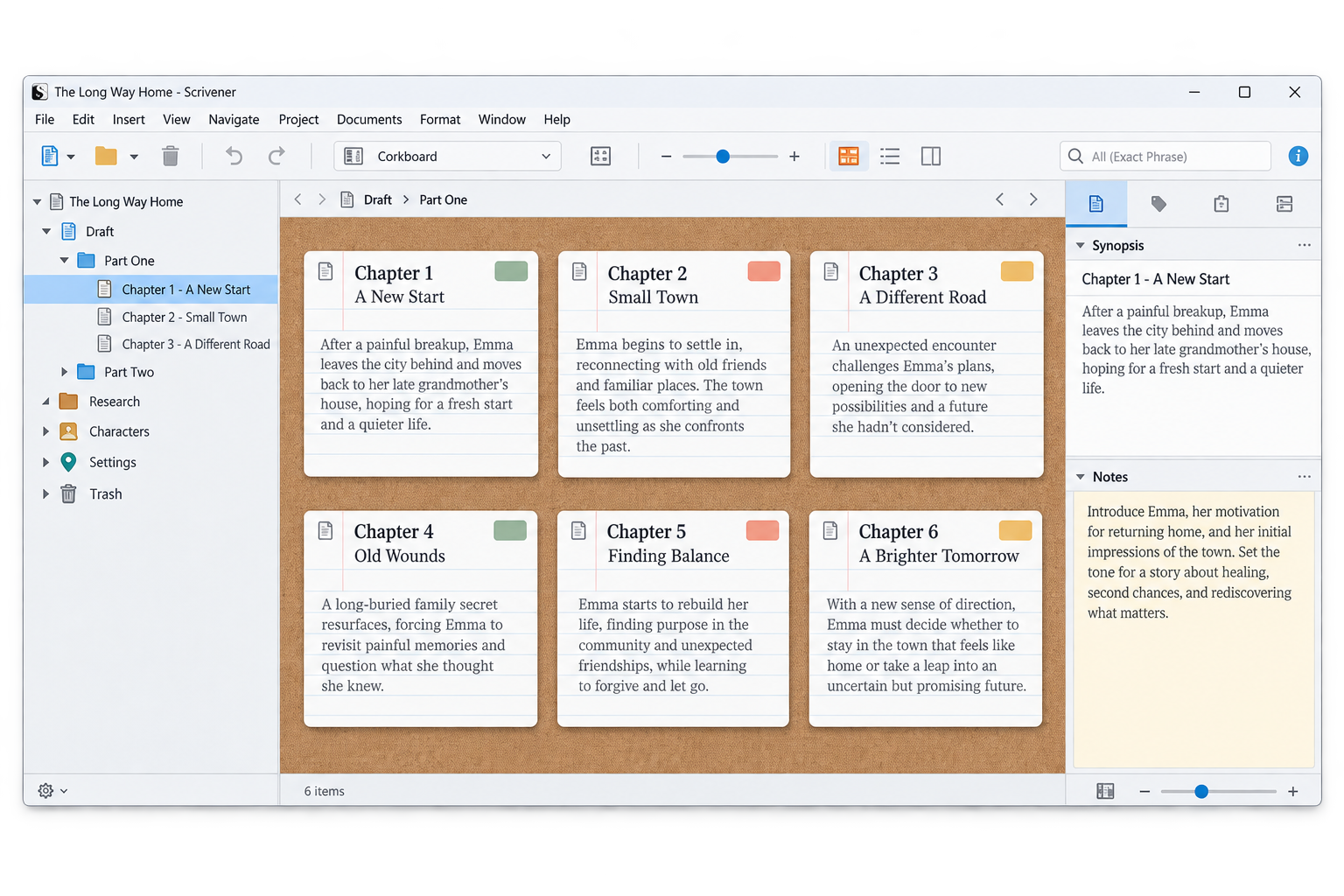
The work starts when you try to piece them together. Is this one for Windows? Is it the current version? Do you need this feature yet? And what should you learn next?
You came to write your book.
Now you’re building your own course.
▶▶▶▶▶▶▶▶▶▶▶▶▶▶▶▶▶▶+
⌕ Scrivener tutorial for Windows…
▶ ▶▶▶▶▶▶▶▶
● ● ●− □ ×
Getting started…Mac tutorial
□ Scrivener tutorial− □ ×
Where is that button?Older Windows version
□ Scrivener tutorial− □ ×
Which video comes next?Another open tab
to be writing.
↓ “Okay. Maybe I should go straight to the source.”
02What about the
What about the
Scrivener manual?
It explains a lot. That’s what makes a manual useful.
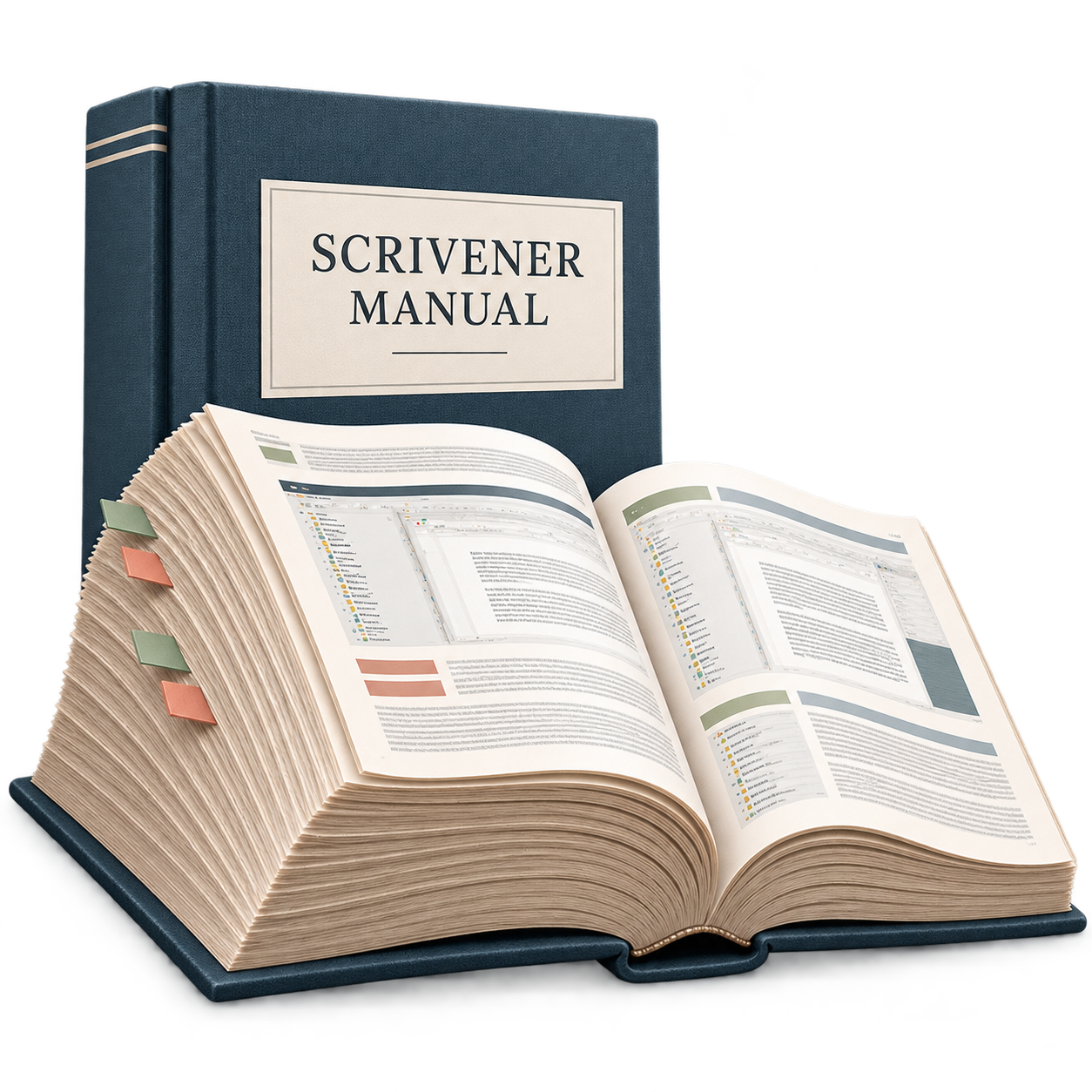
But when your book is scattered across twenty files, a 900-page reference leaves you with another question:
“Which part do I need right now?”
Keep the manual for looking things up. Let me give you a starting point: twelve controls, in the order your book needs them.
900pages to look through.
Where do you start?
Where do you start?
You need a place to begin.
↓ “Then maybe the built-in tutorial is the place to start.”
03How about the
How about the
built-in tutorial?
That sounds like the natural place to begin. It’s supposed to take one or two hours.
But writers have told me about spending four hours, a week, or even two years without finishing it. Those are different people’s experiences, but the frustration sounds familiar.
THE EXPECTATION
“Just an hour or two…”
Supposed to take1–2 hours
WHAT DIFFERENT WRITERS REPORTED
An afternoon gone.
Still working through it.
Without finishing it.
Individual experiences, not a typical completion time.
If that happened to you, you don’t need another reason to feel behind.
You need a manageable next step, someone to show you, and time to try it yourself.
HERE’S A MORE MANAGEABLE WAY
Ninety minutes.
With a person.
On your screen.
You don’t have to figure out your own curriculum. Bring your book. I’ll show you what matters, in order, on Windows.
01Watch me
02Try it with me
03Keep going
 Your Windows screen.
Your guide, right here.
YOUR PATH THROUGH IT · FOUR STAGES, TWELVE CONTROLS

Protect it.
01Project location
02Automatic backups
Organize it.
03Chapters & scenes
04Import and Split
05Research
See it.
06Corkboard
07Labels & Status
08Outliner
09Scrivenings
Write it.
10Split editor
11Snapshots
12Composition Mode
Ninety minutes with a person, on your screen,
for less than the software cost.
ONE CLASS. A CLEAR WAY FORWARD.
Here’s what comes with your seat.
Your $47 seat includes the class, the replay, and the tools to keep going afterward.
● LIVE + Q&A90 minutes.With Joseph.
LIVE · OCTOBER 29 AT 4 P.M. ET
Your live Windows class + Q&A
The live 90-minute class on October 29 at 4 p.m. Eastern, taught on a Windows PC, with Windows questions answered first in the Q&A
01 Protect it.02 Organize it.03 See it.04 Write it.
YOURS TO KEEP
The replay, organized for you
The permanent replay, chaptered by control, posted the same day, so you can jump straight to Control 7 next month when you need it
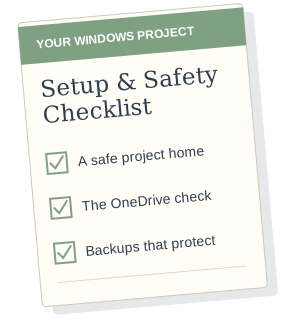
PRINT & KEEP BESIDE YOU
Your project safety checklist
The Windows Project Setup & Safety Checklist, a one-page printable of exactly what we do in Panel 1: where your project should live, the OneDrive fix, and the backup settings that protect you
ONE SMALL STEP A DAY
Seven days to make it stick
The Twelve Controls 7-Day Practice Series, one short email a day for a week after the class, each one asking you to use one control on your own book for five minutes. This is how it sticks. "Tried it in bursts, then forgot it all" is the most common Scrivener story I hear, and this is the cure.
THREE BONUSES · INCLUDED
Your next-step toolkit
Three bonuses, all on the replay page the day of the class
Export mini-class · Revision workshop · Printable Desk Mat
MORE HELP, RIGHT WHEN YOU NEED IT
Three bonuses. Yours the same day.
BONUS 1 · DELIVERED ON WEBINAR DAY
"Get My Book OUT of Scrivener!" Mini-Class
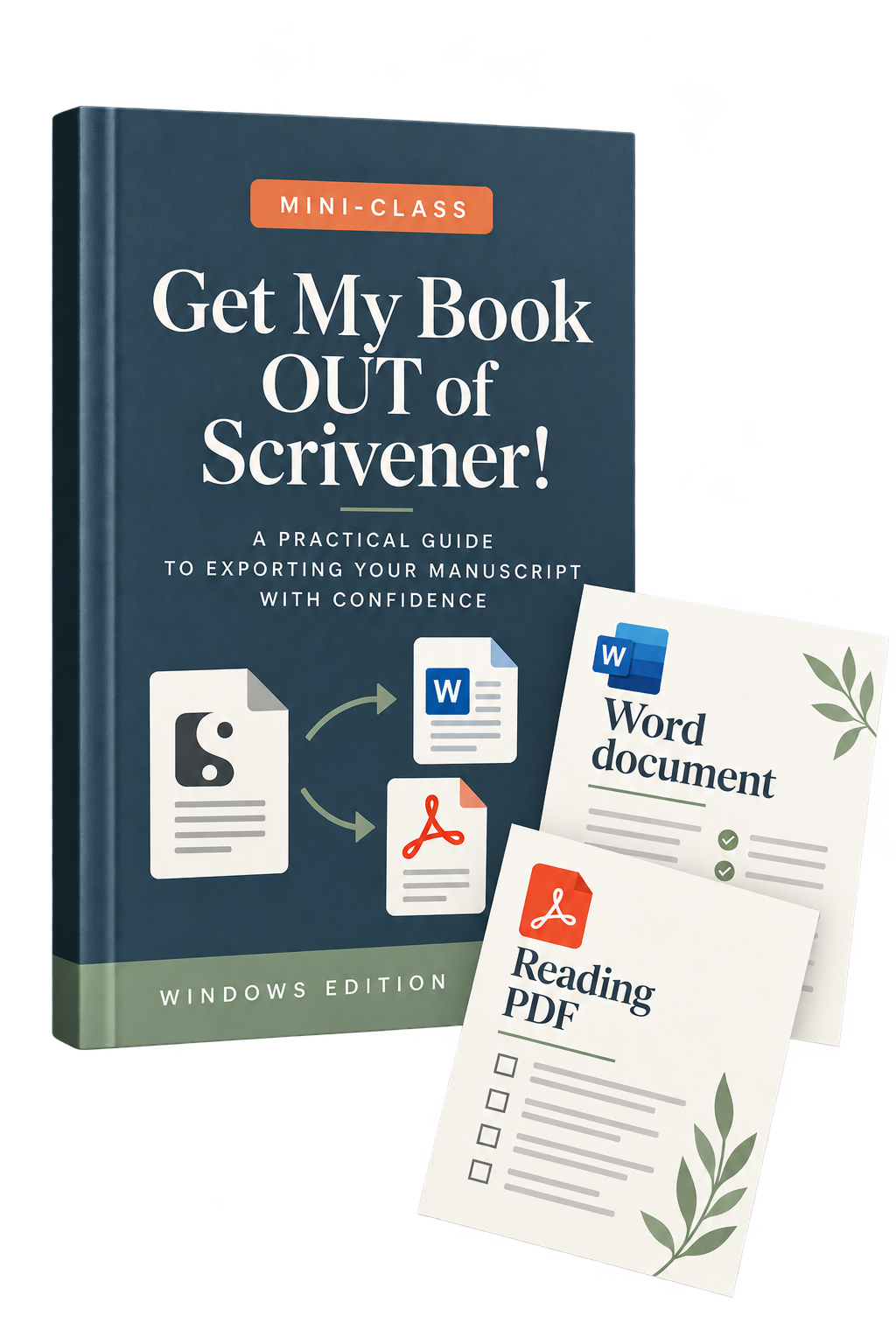
The question I get more than any other, by a mile: "I put all my writing into Scrivener. Now how do I get it out?" In this recorded mini-class I walk you through the Windows steps for turning your draft into a clean Word document and a readable PDF, explain the handful of Compile choices that matter, and fix the five most common "why did it do that?" problems on screen. We keep it to Word and a reading PDF on purpose: that is the right path on Windows, and it is what your editor, your beta readers, and your printer actually want from you. Includes the one-page "Before You Send It" checklist.
BONUS 2 · DELIVERED ON WEBINAR DAY
The "Never Lose a Good Sentence" Revision Workshop
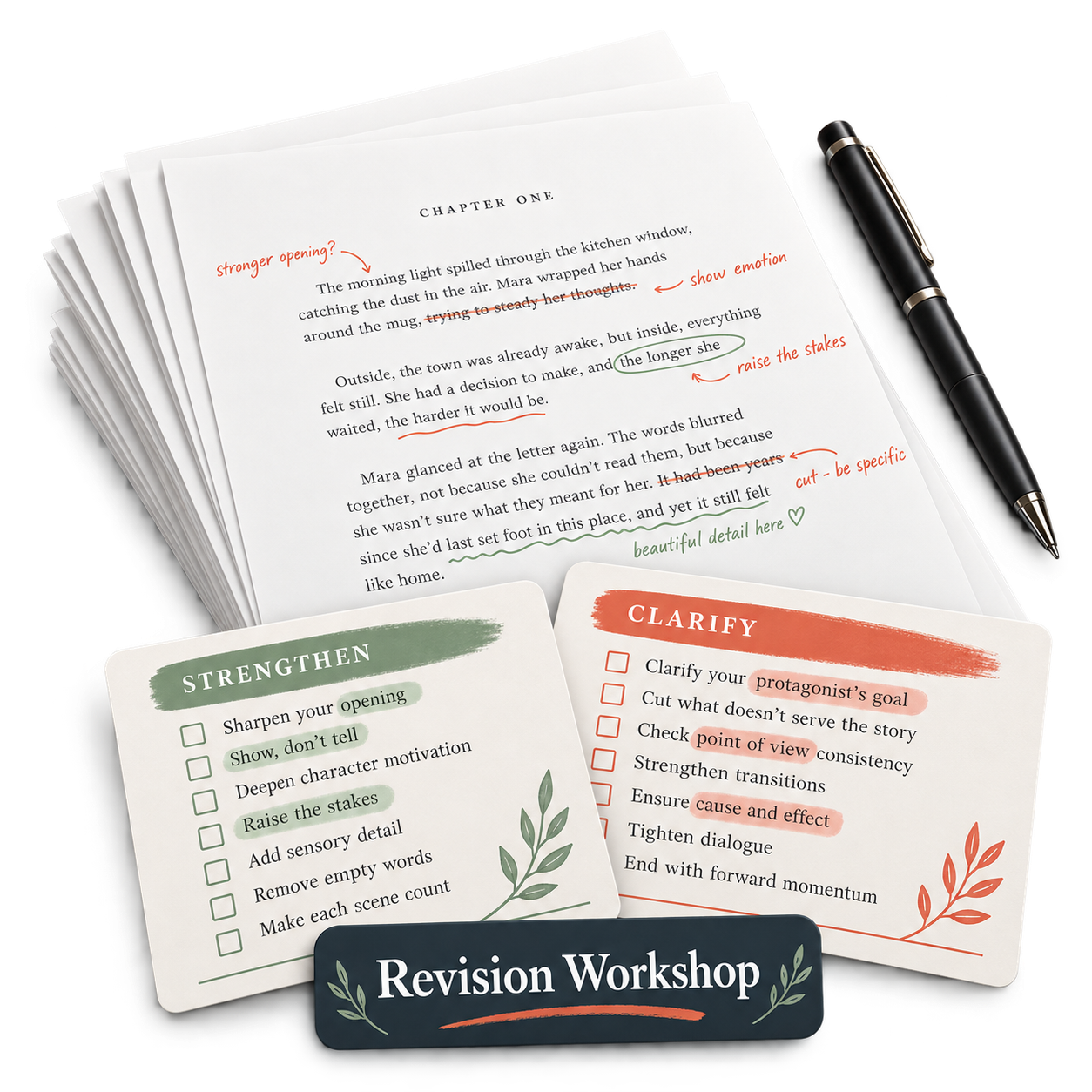
In the class you learn to protect a single scene before you touch it. This recorded workshop is how you revise a whole book without fear. On Windows, I show you titled snapshots of entire chapters, two versions of a hard passage side by side, a Cuttings folder where the good writing you cut stays findable, and a complete revision session on a sample scene from start to finish. You get a clearer way back, which makes it easier to try the bolder change. Includes the "Before You Rewrite" checklist.
BONUS 3 · DELIVERED ON WEBINAR DAY
The Twelve Controls Desk Mat
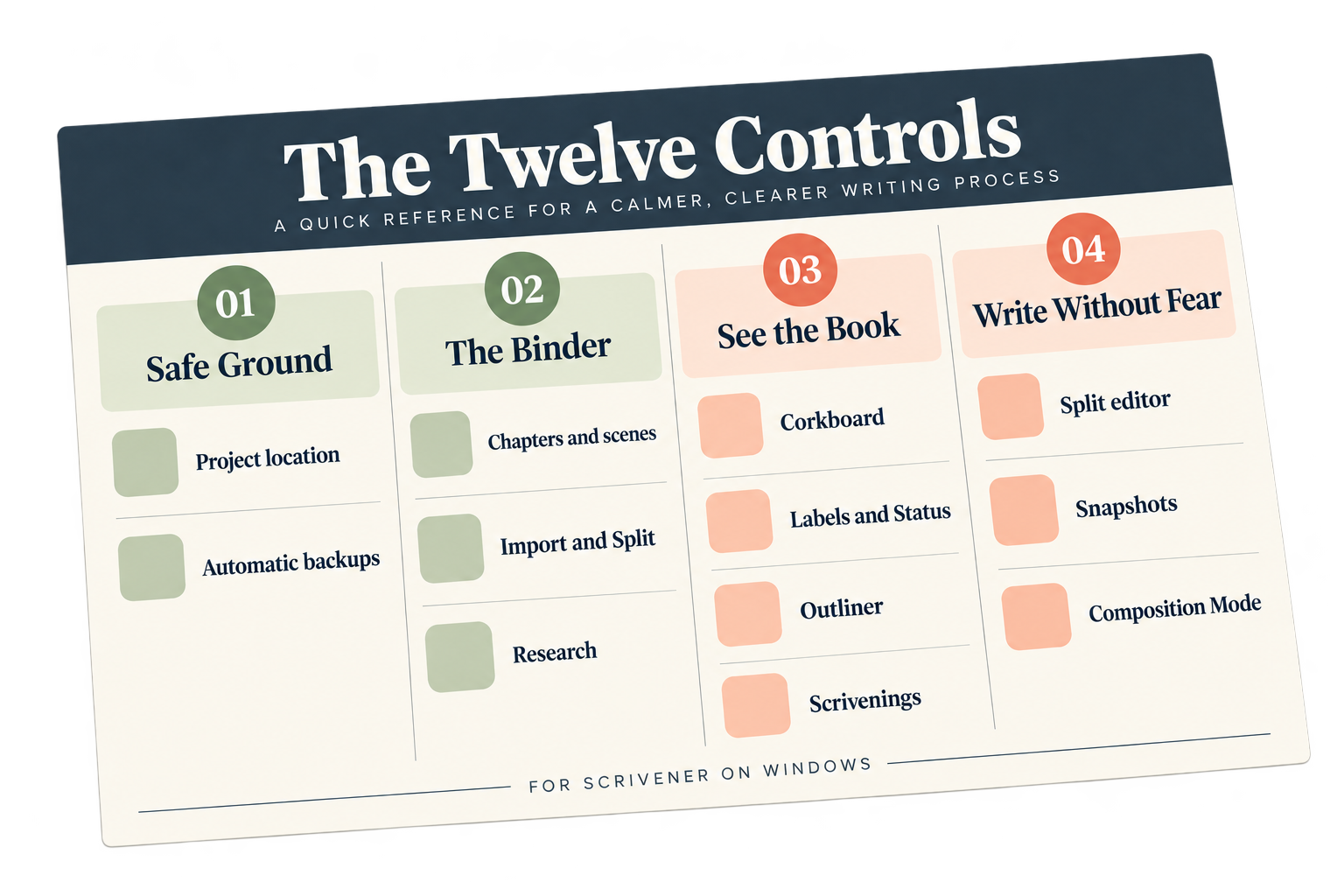
A large-print printable reference of the twelve controls in the exact order you learned them, each with its Windows keyboard shortcut and its menu route, verified against the current Scrivener 3 for Windows manual. And a third column you will not find anywhere else: "In a Mac tutorial they call it... on Windows it's..." So the next time you watch any Scrivener video, you can translate on the spot. Print it, set it beside your keyboard, and stop searching for instructions mid-sentence.
IS THIS FOR ME?
Let’s make sure it fits.
This class is for you if:
- You use Scrivener 3 on a Windows PC, or you own it and have been avoiding it
- Your book, memoir, or nonfiction project currently lives in more than one place
- You have ever lost work, or lie awake a little worried that you might
- You would rather watch someone do it on your kind of computer than translate from a Mac
- You are tired of feeling like you bought a powerful tool and never learned to drive it
It is probably not for you if:
- You want advanced Compile design, EPUB files, or Kindle formatting. That is a different class, and Bonus 1 tells you exactly where it stops.
- You want a tour of every feature Scrivener has. We are doing the opposite of that on purpose.
A note for Mac users: you are welcome. Almost everything we do applies to you too. But every click will be shown on Windows, and this time the Windows folks get to sit in the front row.
YOUR NEXT CHAPTER STARTS HERE
Backed up. Visible.
Ready to write tomorrow.
WHEN
Thursday, October 29
4 p.m. Eastern3 p.m. Central · 1 p.m. Pacific
WHERE
Live on Zoom
Your front-row seat.The link arrives by email after you register.
TIME TOGETHER
90 minutes + Q&A
Learn it. Try it. Ask questions.I stay on for questions after that, as long as they are good.
YOUR REPLAY
Watch it again, anytime.
Posted the same day.Chaptered by control. Yours to keep.
YOUR BONUSES
All three are included.
Ready on webinar day.Find them together on your replay page.
A FEW THINGS YOU MIGHT BE WONDERING
Your questions, answered.
I've owned Scrivener for years and barely used it. Is this too basic for me?
This class exists because of you. Twelve controls, in order, is the thing nobody gave you the first time. If you already use three or four of them, the other eight are the ones you have been missing.
I'm brand new to Scrivener. Will I be lost?
No. We start by creating a safe home for your project and work forward from there, one control at a time, with three pauses where you do it with me. If you can open a program and click on a menu, you can do everything in this class.
I'm on a Mac. Should I still come?
Yes, if the problem sounds like yours. The method is the same. The screen is not.
Which version of Scrivener do I need?
The class is taught on Scrivener 3 for Windows, the current version. If you are still on Scrivener 1.9, you can download the free Scrivener 3 trial from Literature & Latte and follow along. Scrivener 3 converts your old project when you open it and makes a backup copy first.
What if I can't attend live?
Register anyway. The replay is posted the same day along with the bonuses, chaptered by control, and it is yours to keep. Live attendees get their Windows questions answered first, which is the one thing the replay cannot give you.
Will you show me how to get my book out of Scrivener and into Word?
Yes. That is Bonus 1, a recorded mini-class that takes you from a finished draft to a clean Word document and a readable PDF, on Windows.
Does this cover formatting for Kindle or print?
No. This class is about getting your book in, safe, and under control. Bonus 1 gets it out as a Word file and PDF. Ebook and print formatting are a separate, deeper subject, and if there is enough interest I will teach that one next.
Will it go too fast?
I have heard that about webinars before, including mine, so this one is built differently. Twelve controls only. Each one shown on a novel and on a memoir. Three do-it-with-me pauses. A printed Desk Mat so nobody takes notes. And a replay chaptered by control so you can rewatch the one you need in two minutes.
What is Unchained Writer?
It is my membership for writers who want ongoing help, not just a one-time class. I will mention it at the end of the workshop and you can try it free for seven days if you are curious. You do not need it to get everything out of this class.
A NOTE BEFORE YOU GO
Consider this me showing you.
Here is what I keep hearing from Windows writers: "I love Scrivener. I just wish someone would show me on my computer."
Consider this me showing you.
Bring the giant Word document. Bring the folder of twenty files. Bring the Scrivener project you are a little scared of. Bring the copy you bought in 2014 and never opened again. In 90 minutes, on a Windows screen, you will learn the twelve controls that run a book, and you will leave with yours inside Scrivener, backed up, visible, and ready for tomorrow morning.
I would love to have you there.
Cheering for you,
Joseph Michael
Your Scrivener Coach
P.S. The replay is yours to keep and the three bonuses go up the same day. But if you can be there live on October 29, bring your questions. Windows questions go first. And if you have been stuck in the loop for years, come tell me in the chat how long you have owned Scrivener. You will not be the only one, and that is kind of the point.